Accept: text/markdown.Reconstruct a scan on another machine
Run a job on a cluster and view it on a laptop.
Run Studio on your laptop and keep the scan and reconstruction on the machine that holds your data. A project folder on the laptop remembers the scan paths, settings, views and jobs. You can close Studio during a reconstruction on a workstation or Slurm cluster and reopen the project to see the result.
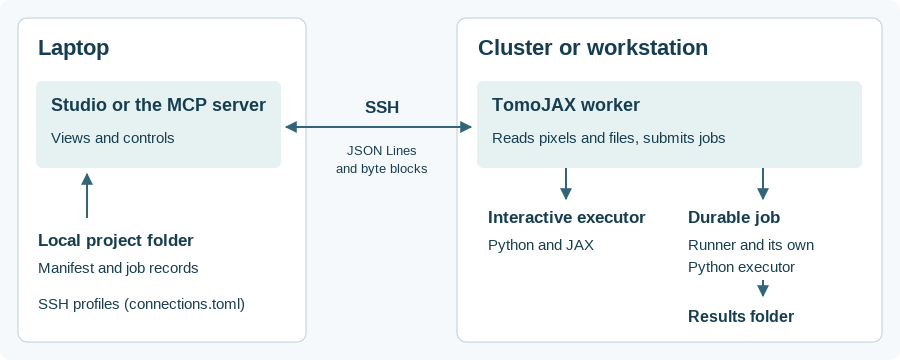
Connect from Studio
- Open TomoJAX Studio on your Mac or Linux laptop. Choose Connect to a computer. Enter the host name or IP address of the computer that holds the scans. Use
user@hostif your account there has a different name. If you reach it through a gateway, enter the gateway address in the second field. - Choose Connect. The Connect screen names the machine asking each question. On a first visit, compare the host key fingerprint with the one from your site, then choose Trust and continue. Enter the password, key passphrase or one-time code when asked and press Return. If a known key has changed, SSH stops. Verify the change with your site administrator. Studio sends each answer to SSH and never saves it. An interactive second hop requires the gateway to permit SSH forwarding.
- Studio checks the data host’s platform before uploading its worker. Choose a Linux x86-64 or Arm64 data host. Studio then checks for a matching TomoJAX environment, an NVIDIA GPU and Slurm. If it finds Slurm, choose an available partition and CPU or GPU. Studio uses the partition for interactive work and submitted jobs. A workstation runs jobs as separate processes.
- If the matching version is missing, choose Install matching TomoJAX, or enter the Python interpreter from a site environment and choose Check environment. Installation runs on the first SSH host and needs
uv, package-index access and a home directory shared with the data host and compute nodes. Studio verifies the interpreter on the data host before using it. - Studio saves the connection under the host name. Choose a folder on the laptop for the project, then choose the results folder on the data host. For another project on the same machine, choose its name under Saved connections on the connection form. SSH reuses the login until it expires.
For sites with custom launchers or scheduler requirements, Advanced contains the interpreter, launcher, scheduler options and default results folder. You can reopen it with Edit in Connections.
Install the command-line tools or configure a profile by hand
The laptop needs Linux on x86-64 or Arm64 with a Vulkan driver, or macOS on Apple silicon, and SSH. The data host needs Linux on x86-64 or Arm64 with glibc 2.28 or later. Install TomoJAX and Studio in a Python 3.12, 3.13 or 3.14 environment on the laptop. Studio supplies the worker executable. When the data host’s platform differs from the laptop’s, the first connection downloads the Linux worker from the tomojax-studio wheel of the same version on PyPI, checks the wheel’s SHA-256 digest from the index and keeps the worker in the laptop’s cache. Set TOMOJAX_WORKER_INDEX to use another package index, such as a mirror, or place the Linux worker from that wheel beside tomojax-worker as tomojax-worker-linux-x86_64 or tomojax-worker-linux-aarch64. On a Mac, the same commands install the macOS tomojax-studio wheel.
python3 -m venv .venv
. .venv/bin/activate
python -m pip install --pre tomojax tomojax-studio
Studio and the command-line tools share ~/.config/tomojax/connections.toml. To configure a connection by hand, add an entry on the laptop. The example names the connection cluster. Replace the SSH destinations, partition and writable results path with yours. Use the SSH destinations in the order you normally reach them. With direct access to the submit host, give just that host.
[cluster]
ssh = ["login", "submit"]
jobs = "slurm"
session = "srun -p compute -c 4 --mem=16G -t 2:00:00 -u"
sbatch = "-p gpu --gres=gpu:1 -c 4 --mem=16G -t 1:00:00"
results = "/shared/visit/processing"
The worker runs on the last SSH host. It uses session to start an interactive Python executor and sbatch for submitted jobs. The submit host and compute nodes must see the same scan, Python environment and results folder. On a workstation, a connection can be as short as [workstation] followed by ssh = ["lab-gpu"]. It runs submitted jobs as separate processes.
Log in from the laptop. SSH handles the site's prompts. A subsequent connection reuses the login. TomoJAX requests eight idle hours for its SSH master unless your SSH configuration sets the lifetime.
tomojax-worker connect cluster --loginIf your site already provides TomoJAX, add its absolute interpreter path as python = "/path/to/env/bin/python" under [cluster]. The default is python3. To install the laptop's version with CUDA 12 support, run the command below. It needs uv and package-index access on the first SSH host, with a home directory shared by the machines that run Python.
tomojax-worker connect cluster --installCopy the printed python = line into [cluster]. On a CPU-only machine, use a Python environment with the matching base tomojax package. Check the connection before creating the project.
tomojax-worker connect cluster --check
tomojax studio
When a host has several addresses, Studio shows the address SSH is trying. Once SSH reaches the data host and starts the worker, the worker has 20 seconds to announce it is ready. Studio retries a silent connection and asks you to log in if SSH refuses authentication on either hop.
The check prints executor startup messages and reports the host, executor version, devices, and job launcher; if the executor exits before becoming ready, it reports the reason. The first connection copies the laptop's worker to the data host. The Slurm executor can take longer to answer if its allocation is queued.
Choose the project and results folders
- On the Studio start screen choose Create a project, select cluster and choose Use connection. Choose a folder on the laptop for the project manifest.
- Use Choose first scan… to browse files on the cluster. For a multi-file acquisition, select its header or master file. Leave Copy sources into the project off to read the acquisition where it was collected. You can also import later with Add scans.
- Select a writable results folder on the cluster. For a read-only beamtime folder, choose the visit's processing directory. Studio can suggest the scan's folder when it is writable, or a previously chosen or configured results location. Use this folder creates a project subfolder there. It holds managed inputs, kept previews and job results. Studio checks its project marker when you reconnect.
To try the workflow with simulated data, choose the results folder first and use Simulation in Prepare to create a phantom scan. For raw detector counts, use Open & calibrate in Prepare to select flats, darks and geometry before reconstructing. Studio shows and lets you probe the first projection of a raw scan (including HDF5, TIFF, and vendor stacks) before full numerical inspection finishes.
Queue and view a reconstruction
Select the calibrated scan, open Reconstruct, choose a method and review the grid and settings. For a parallel-beam scan, FBP gives a first look at the reconstruction. On Slurm the connection supplies the resource request. Use Scheduler options if the job needs different resources. Choose Queue reconstruction and open Jobs. Once Activity reports the worker's Queued or Running state, the remote job can finish with Studio closed.
Open the local project folder again. The connection checks the results folder and retrieves the job's progress. If Slurm finishes before the results become visible on the submit host, the job stays Running until the worker can read its result. Open the completed job and choose Explore result. Scroll through axial, coronal and sagittal planes. While scrolling, Studio requests small images. When you stop, it fetches lossless samples for probing and measurements. Zoom in on a feature and pause to fetch finer samples from the visible region. Volume rendering and display window adjustments run on the laptop.
During a network interruption, a cached image is marked Not live. Studio reconnects and fetches the selected view again. Use Log in… in the status bar if SSH needs a new login. If a job was interrupted or canceled and has a usable checkpoint, choose Resume in Activity. Jobs on the built-in local connection run in the session and stop when it closes.
Copy a file
Open the connection in the status bar and choose Browse files…. Select a remote file and choose Copy to this computer… to save it on the laptop. Copy from this computer… sends one laptop file into the displayed remote folder. Both directions verify the SHA-256 digest, accept files up to 100 MiB and require a new destination. Uploaded files inherit the target umask and directory ACLs. For an exported stack, select an individual slice to take home.
Use the connection from an MCP client
Set the client's command to tomojax and its arguments to ["mcp", "--connection", "cluster"]. Start it on the laptop using the same environment as Studio. File paths in tomography operations refer to the cluster. The python tool runs in the connected executor and can work with its live scans and volumes. Use submit with a saved scan path, keep the job ID, and call jobs with that ID after reconnecting. The job tools use the connection's results folder or ~/tomojax by default. A download call takes a remote path and a laptop destination to. See the MCP client setup and tool examples.